

Starting with new lab management software can feel difficult if you have never used it before. You may wonder how to create an account, enter your personal details, add your address, and access the software.
Healthilyze makes the registration process simple with a step-by-step form. It guides you through four stages: Register, Profile, Address, and Final.
In this guide, we will explain each stage in easy words. By following these steps, you can create your account, complete your profile, and choose the next option based on your requirements.
Step 1: Open the Healthilyze Website
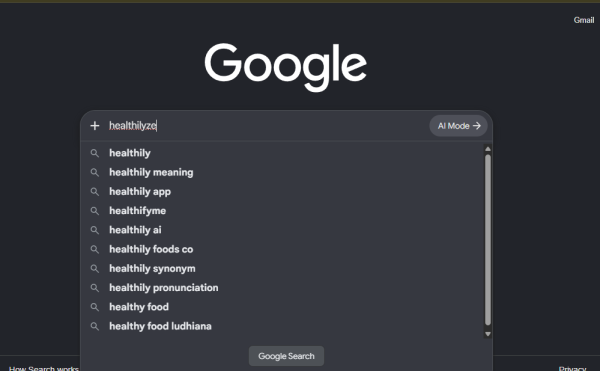
First, open Google in your browser and type “Healthilyze” in the search bar. Press Enter to view the search results. You will find the Healthilyze website on Google. Click on the website to explore our lab management software and learn more about its features and benefits.
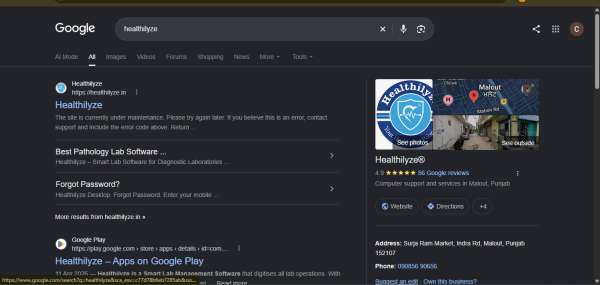
Healthilyze helps laboratories manage patient records, laboratory tests, billing, payments, and reports in one place. It makes daily laboratory work easier by reducing paperwork, saving time, and keeping important information organised. With Healthilyze, laboratories can access patient details more easily, generate reports efficiently, manage billing records, and simplify their daily operations. It also helps laboratory staff handle routine tasks in a more organised way, reducing the effort required to manage different activities manually.
Whether you run a small diagnostic laboratory or a growing testing centre, Healthilyze provides digital tools to support your laboratory management needs. Visit the Healthilyze website to explore its features and discover how the software can help improve workflow, increase efficiency, and make laboratory management simpler.
Step 2: Open the Healthilyze Signup Page

After opening the website, you will see the Healthilyze sign-in page, as shown in the screenshot above. This page allows users to sign in to their existing accounts or create a new account if they are using the software for the first time.
On this page, you will find a field to enter your mobile number, a “Continue” button, a “Forgot Password?” option, and a “Sign Up Now” button.
If you are a new user and do not have a Healthilyze account yet, click on the “Sign up Now” button at the bottom of the page. This will help you start the registration process and create your account.
If you already have an account, enter your registered mobile number and click on “Continue” to proceed with signing in. If you have forgotten your password, you can use the “Forgot Password?” option to recover access to your account.
Important: If you are visiting Healthilyze for the first time, click on “Sign up Now” to begin the account creation process. In the next step, you can follow the registration instructions to enter your details and set up your account.
Step 3: Complete the Register Stage
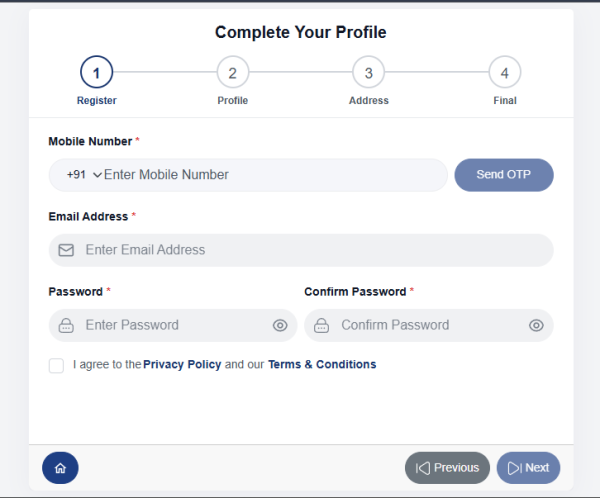
The first stage is Register. In this step, you need to enter your contact details and create a password for your account.
Enter Your Mobile Number
The first field asks for your mobile number.
- Select the correct country code. For India, the code is +91.
- Enter your mobile number in the field.
- Click the Send OTP button.
An OTP is a one-time password used to verify your mobile number. If you receive an OTP, enter it wherever the verification process asks you to do so and follow the instructions shown on the screen.
Important: Enter a mobile number that you can access, as you may need it for verification.
Enter Your Email Address
Next, enter your email address in the Email Address field.
For example, you can enter your personal or business email address that you regularly use.
Before continuing, check that the email address is correct. An incorrect email address may cause problems if you need to receive account-related messages.
Create a Password
Now, create a password for your Healthilyze account.
Choose a strong password that is difficult for others to guess. It is better to use a combination of uppercase letters, lowercase letters, numbers, and special characters.
Do not use an easy password such as your name or date of birth.
Confirm Your Password
In the Confirm Password field, enter the same password again.
Both passwords must match. If they are different, check the spelling and enter the correct password.
You can use the eye icon beside the password field to view the password while entering it, if the option is available.
Accept the Privacy Policy and Terms & Conditions
Below the password fields, you will see a checkbox for the Privacy Policy and Terms & Conditions.
Read the information and tick the checkbox to indicate your agreement.
Once you have completed all the required fields, click Next to continue.
Before moving forward, check the following:
- Your mobile number is correct.
- Your email address is entered correctly.
- Both password fields match.
- You have accepted the Privacy Policy and Terms & Conditions.
Step 4 : Enter Your Personal Details
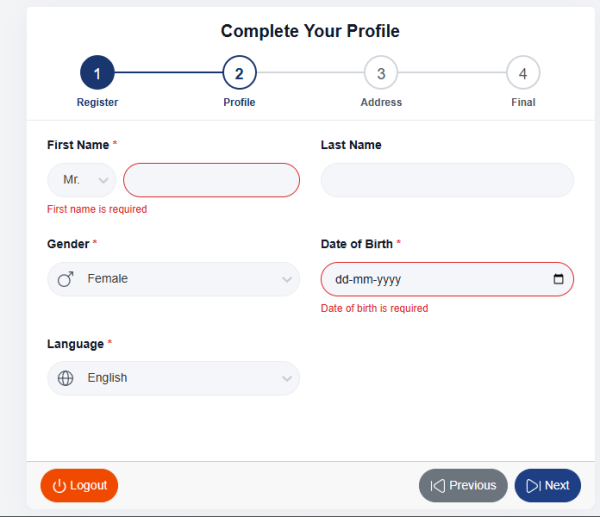
After completing the registration stage, you will move to the Profile stage.
Here, you need to provide some basic personal information. These details help complete your account profile.
Enter Your First Name
The First Name field is marked as required.
Select the appropriate title or option from the dropdown beside the name field, if applicable, and enter your first name in the required field.
Make sure you enter your name correctly. If the field is left empty, you may see an error message asking you to enter your first name.
Enter Your Last Name
Enter your last name in the Last Name field.
This field is not marked as required in the screenshot. However, you can fill it in if you have a last name.
Check your details before moving to the next field.
Select Your Gender
The next field is Gender.
Choose the appropriate option from the dropdown menu. In the screenshot, the selected option is Female.
Select the option that applies to you.
Enter Your Date of Birth
Select your date of birth using the date field or calendar icon.
Follow the date format displayed on the screen. The screenshot shows the format as dd-mm-yyyy, which means:
- dd: Day
- mm: Month
- yyyy: Year
For example, if the date is 5 March 2000, enter it as 05-03-2000 if the field accepts that format.
Make sure you enter the correct date. The field is required, so you may not be able to continue without completing it.
Select Your Preferred Language
The Language field lets you select your preferred language.
In the screenshot, English is selected.
Choose the language you want to use, based on the options available in the dropdown menu.
Click Next
After entering your personal details, review the information carefully.
If any required field is empty, the form may show a red message below that field. Correct the missing information before continuing.
Once everything is complete, click Next to proceed to the Address stage.
Tip: If you need to go back and correct something, use the Previous button at the bottom of the form.
Step 4: Enter Your Address Details
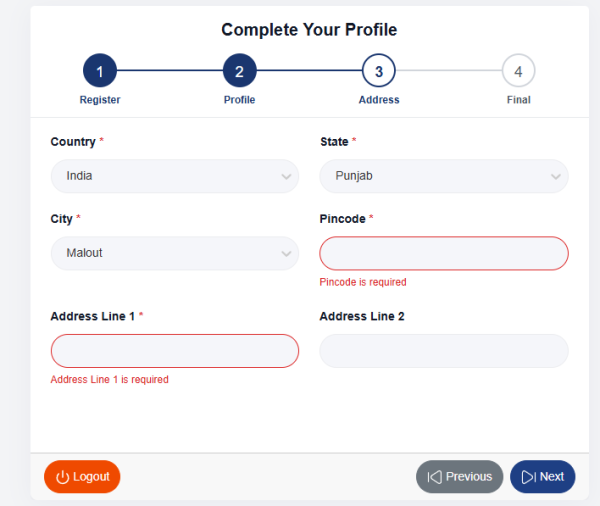
The third stage is Address. In this step, you need to enter your location and address details.
Fill in the fields one by one.
Select Your Country
Choose your country from the Country dropdown.
In the screenshot, India is selected.
Select the country where you currently live or the appropriate country for your account.
Select Your State
Next, select your state.
The screenshot shows Punjab as the selected state.
Choose the correct state from the available options.
Select Your City
Choose your city from the City dropdown.
In the screenshot, Malout is selected.
Select your actual city or the relevant city for your address. The available city options may depend on the country and state you select.
Enter Your Pincode
Enter your area’s correct postal PIN code in the Pincode field.
In India, a PIN code generally contains six digits.
Check the number carefully before continuing. Entering an incorrect PIN code may lead to inaccurate address information.
Enter Address Line 1
Address Line 1 is a required field.
Enter your main address here. It may include details such as your house number, building name, street name, or locality.
For example:
House No. 25, Main Market Road
This is only an example. Enter your own correct address.
If you leave this field empty, the form may display an error message such as “Address Line 1 is required.”
Enter Address Line 2
Address Line 2 is optional in the screenshot.
You can use this field for additional address details that do not fit in the first line, such as a nearby landmark, apartment name, or additional locality information.
If you have no additional details, you can leave this field empty.
Review Your Address
Before clicking Next, check all the address details:
- Country
- State
- City
- PIN code
- Address Line 1
- Address Line 2, if applicable
Make sure the required fields are complete and the information is correct.
Now click Next to move to the final stage.
Step 5: Complete the Final Stage
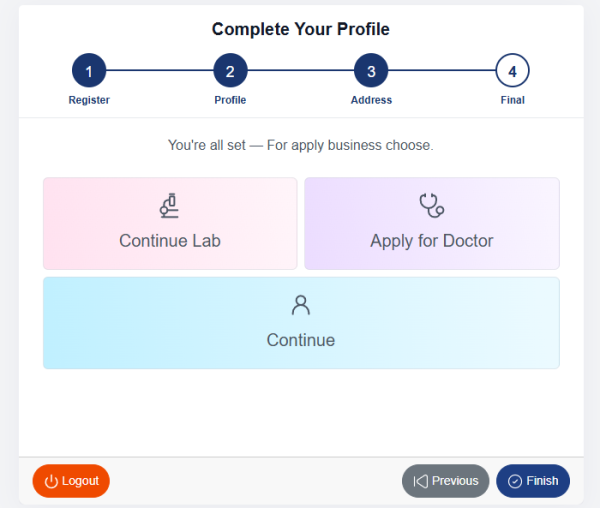
After completing the Register, Profile, and Address stages, you will reach the Final stage.
The screen displays the message:
“You’re all set — For apply business choose.”
You will see three options:
Continue Lab
Choose Continue Lab if you want to proceed with the lab-related option.
This is the option to explore if you are creating an account to use Healthilyze for a diagnostic or pathology laboratory.
Follow any additional instructions shown on the screen to continue.
Apply for Doctor
The second option is Apply for Doctor.
Choose this option if you want to proceed with the doctor-related application process.
You may need to provide additional information or complete further steps, depending on the requirements displayed by Healthilyze.
Continue
The third option is Continue.
Choose this option if you want to proceed without selecting the lab or doctor application options.
Read the instructions shown on the next screen and follow the steps relevant to your account.
Click Finish
Once you have selected the appropriate option and completed any required actions, click Finish to complete the process.
Your next screen may depend on the option you selected and any additional steps required by the platform.
Important: Completing the signup form does not necessarily mean that every lab or doctor application has been approved. Follow the on-screen instructions to finish any remaining steps.
Common Problems During Healthilyze Registration
Sometimes, you may face small problems while completing an online registration form. Here are some simple ways to handle them.
- The form says that a field is required.
Check the field mentioned in the error message. Enter the missing information and try again.
- The passwords do not match.
Enter the same password in both the Password and Confirm Password fields.
- You have not received an OTP.
Check that your mobile number and country code are correct. Wait briefly and follow the verification instructions shown on the screen.
- You cannot move to the next stage.
Look for red error messages. Make sure all required fields are complete and any required checkbox is selected.
- You entered the wrong address.
Use the Previous button to return to the Address stage, if available, and correct the details before finishing.
- You are unsure which final option to select.
Choose the option that matches your purpose: Continue Lab for the lab-related process, Apply for Doctor for the doctor-related application, or Continue for the general continuation option.
If the issue continues, contact Healthilyze support through its official website.
Tips for Creating Your Healthilyze Account Successfully
Keep these simple tips in mind while registering:
- Use a mobile number that you can access.
- Enter a valid email address.
- Create a strong password and keep it private.
- Enter your personal details correctly.
- Provide the correct PIN code and address.
- Complete every required field before moving forward.
- Read the instructions on the final screen before selecting an option.
- Keep your login details secure.
Taking a little extra time to check your information can help you avoid mistakes during registration.
Conclusion
Creating an account on Healthilyze is a straightforward process when you follow each stage carefully.
Start by entering your mobile number, email address, and password. Then complete your personal details, add your address, and select the appropriate option on the final screen.
Remember to check all required fields before clicking Next and to follow any additional instructions shown during the process.
Frequently Asked Questions
How do I create an account on Healthilyze?
Visit healthilyze.in, enter your mobile number, email address, and password, and then complete the Profile, Address, and Final stages.
Is a mobile number required during registration?
Yes. The signup form marks the mobile number as required and provides a Send OTP button for verification.
What details are required to complete my Healthilyze profile?
The form asks for your first name, gender, date of birth, language, country, state, city, PIN code, and Address Line 1, along with your registration details. Last name and Address Line 2 are not marked as required in the screenshots.
Why can’t I move to the next step?
You may have missed a required field, entered mismatched passwords, or not accepted the required terms. Check for red error messages and correct the information.
What should I select on the final screen?
Choose Continue Lab for the lab-related process, Apply for Doctor for the doctor-related application, or Continue to proceed through the general option. Follow any further instructions displayed.
 Previous Post